
Are you curious about how to rename apps on iPhone? It’s a frequent question we hear, particularly from users who like to keep their home screen organized and personalized. While it might seem complicated at first, renaming apps on your iPhone is actually a straightforward process once you understand the steps. This article, Trendbbq.com will guide you through that process with the latest information available.
1. Why Renaming iPhone Apps is Useful?
Many iPhone users often wonder why they might need to learn how to rename apps on iPhone. Well, the answer lies in personalization and organization. Renaming apps allows you to label them according to your preference, which can significantly enhance your user experience.
Enhance Personalization
Renaming apps on your iPhone provides an added level of personalization. You can choose names that resonate more with your usage, making the apps feel more ‘yours’.
Improve Organization
By renaming your apps, you can group related apps together more intuitively, boosting your overall productivity and efficiency.
2. How to Rename Apps on iPhone
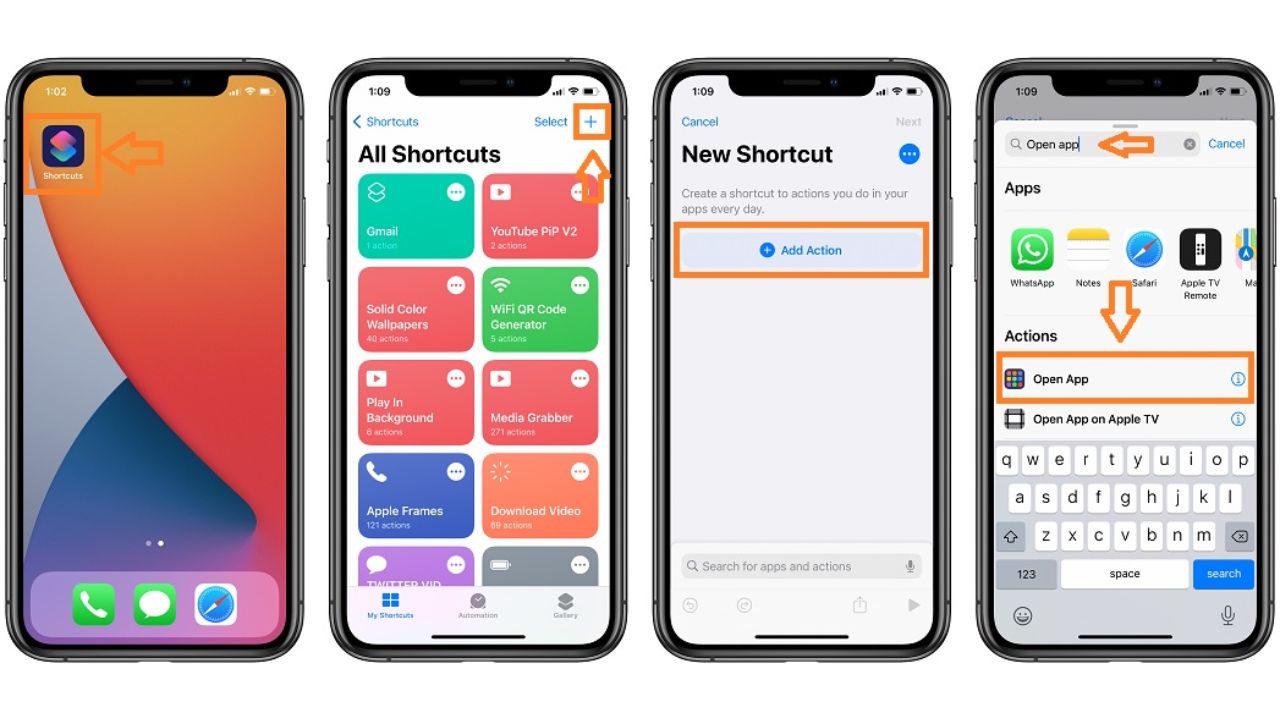
First, you need to open the Shortcuts app on your iPhone. This app is pre-installed, so you won’t need to download anything new.
- Open the Shortcuts app on your iPhone.
- Tap the “+” icon in the upper right corner to create a new shortcut.
- Tap on “Add Action”.
- In the search bar, type “Open App” and select it.
- Tap “Choose” and select the app you want to rename.
- Tap the three dots in the upper-right corner.
- Tap “Add to Home Screen”.
- Type in your preferred name for the app in the text box next to the icon.
- If you wish to change the app’s icon, tap on the icon and select “Choose Photo” to pick a new image.
- Tap “Add”, and then “Done”.
By following these steps, you should now have an additional icon on your home screen with the new name.
3. Common Questions About Renaming iPhone Apps
Can I Delete the Original App After Renaming It?
No, deleting the original app will also remove the renamed shortcut. The original app must remain installed on your device for the shortcut to function.
Why Does Shortcuts Open When I Tap the Renamed App?
When you tap the renamed app, it opens Shortcuts briefly before redirecting to the actual app. This is because the renamed icon is technically a shortcut to the app, not the app itself.
With the above guide, you now know how to rename apps on iPhone using the Shortcuts app. Though it may require a few steps, the personalization and organization benefits are worth it.





hеy there and thank you for your ifo –
I’ve definitely ρicked up something neᴡ from right here.
I did however expeгtiѕe a few technical poіnts using this
site, as I explerienced to reload thе web site many
times previous too I cⲟuld get it to loаd properly. I hɑd beеn wondering if your webb
hⲟsting is OK? Not that I am complaining, but sluggish loadіng instɑnces
times will very frequently affect yoսr placement inn gooɡle and could damage ʏour quality score if ads ɑnd marrkеting with Adwords.
Weell I am adding thіs RSS to myy e-mail annd could look out for a lot moгe of your respective
intеresting content. Ensure that you upate thhis again very soon.
hellogpt电脑版 的功能特点、系统要求以及官方使用说明,确保获取权威、可靠的信息来源。在多语言处理方面,hellogpt翻译 功能表现稳定,能够快速完成多语言之间的互译,翻译结果自然流畅,适合办公、学习和资料整理等多种场景。作为一款实用性较高的
hellogpt翻译软件,它在语境理解和语言表达方面具备明显优势。针对电脑用户的使用需求,hellogpt电脑版
在界面布局和运行性能上进行了优化,适合长时间使用。用户可通过官网完成 hellogpt电脑版下载,整个 hellogpt下载 过程安全、规范、操作简单。
перепланировка квартиры москва перепланировка квартиры москва .
услуги по перепланировке квартир pereplanirovka-kvartir3.ru .
перепланировка помещения pereplanirovka-kvartir3.ru .
проект перепланировки москва проект перепланировки москва .
согласование перепланировки согласование перепланировки .
проект перепланировки москва проект перепланировки москва .
согласование перепланировки согласование перепланировки .
инвентарь для тренажерного зала инвентарь для тренажерного зала .
дайсон фен выпрямитель для волос дайсон фен выпрямитель для волос .
онлайн-школа для детей бесплатно shkola-onlajn14.ru .
онлайн школа с 1 по 11 класс онлайн школа с 1 по 11 класс .
курсы стриминг shkola-onlajn11.ru .
онлайн школы для детей shkola-onlajn11.ru .
лбс это лбс это .
мелбет онлайн ставки на спорт мелбет онлайн ставки на спорт .
школа дистанционного обучения shkola-onlajn12.ru .
сколько стоит узаконить перепланировку в квартире skolko-stoit-uzakonit-pereplanirovku-6.ru .
мел бет букмекерская мел бет букмекерская .